Made for the way you actually speak
Why use word-by-word Hinglish captions for TikTok?
Quick TikTok videos need captions that are easy to follow without covering the vertical frame with long sentences. Hinglish Captions creates one-word-at-a-time SRT cues that you can style in a compatible video editor before uploading the finished video.
It is particularly useful for creators who switch naturally between Hindi and English. A reviewed transcript lets you choose the exact Roman Hinglish wording instead of relying on an automatic transcript to decide how names, slang, or code-switched phrases should appear.
- Keep names, brand terms, slang, and Hindi–English phrases spelled consistently.
- Create short, timed cues that work well with fast vertical-video caption styles.
- Process unpublished TikTok content locally instead of uploading it to this website or a paid caption service.
- Export a standard SRT that you can style in a compatible editor before publishing.
Many caption workflows make you choose between accepting incorrect Hinglish words and correcting a long list of subtitle cues afterward. This tool changes the order: you approve the words first, then it works out when each word should appear.
Generate the SRT from the same media timeline you plan to publish. If you trim the TikTok video, remove silence, or change its playback speed afterward, regenerate or retime the captions before uploading.
Why it is worth using
More control, without another monthly bill
Hinglish Captions focuses on the parts that matter most to short-form creators: the words viewers see, the timing of each word, an editable output, and a workflow you can keep using for free.
Your Hinglish spelling
Keep the Roman Hindi, English words, names, slang, and capitalization your audience recognizes.
Word-by-word timing
Get an SRT built for fast one-word-at-a-time caption styles instead of sentence-sized blocks.
No recurring cost
No subscription, minutes, credits, paid API key, watermark, or fee each time you export.
Media stays local
Process unpublished videos on your own computer instead of uploading them to this website.
Editable in your workflow
Import the SRT into a compatible editor and choose the final font, animation, colour, and placement.
No platform lock-in
The project is open source, so it remains inspectable, adaptable, and available from GitHub.
A simple four-step workflow
Create captions without learning a complicated editor
After the one-time installation, open the tool in your browser, add your media, confirm the words, and download the SRT. The processing happens on your computer.
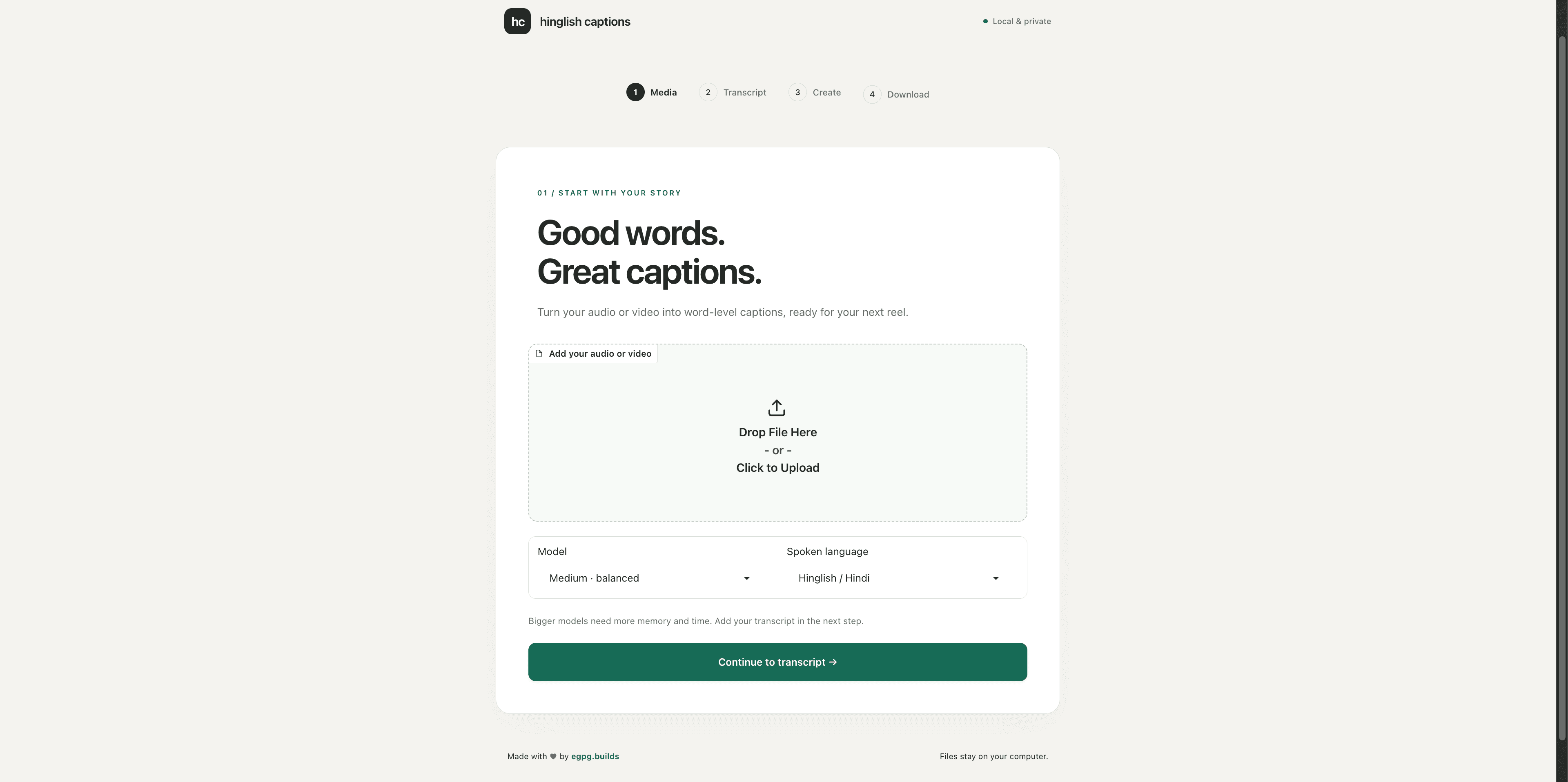
Add your audio or video
Choose the Reel, Short, video, or audio file you want to caption. Select Hinglish / Hindi as the spoken language and use the medium model if you are unsure—it is the best starting point for most people.
- Use small when speed or lower memory use matters most.
- Use large-v3 only when you have a capable computer and do not mind waiting longer.
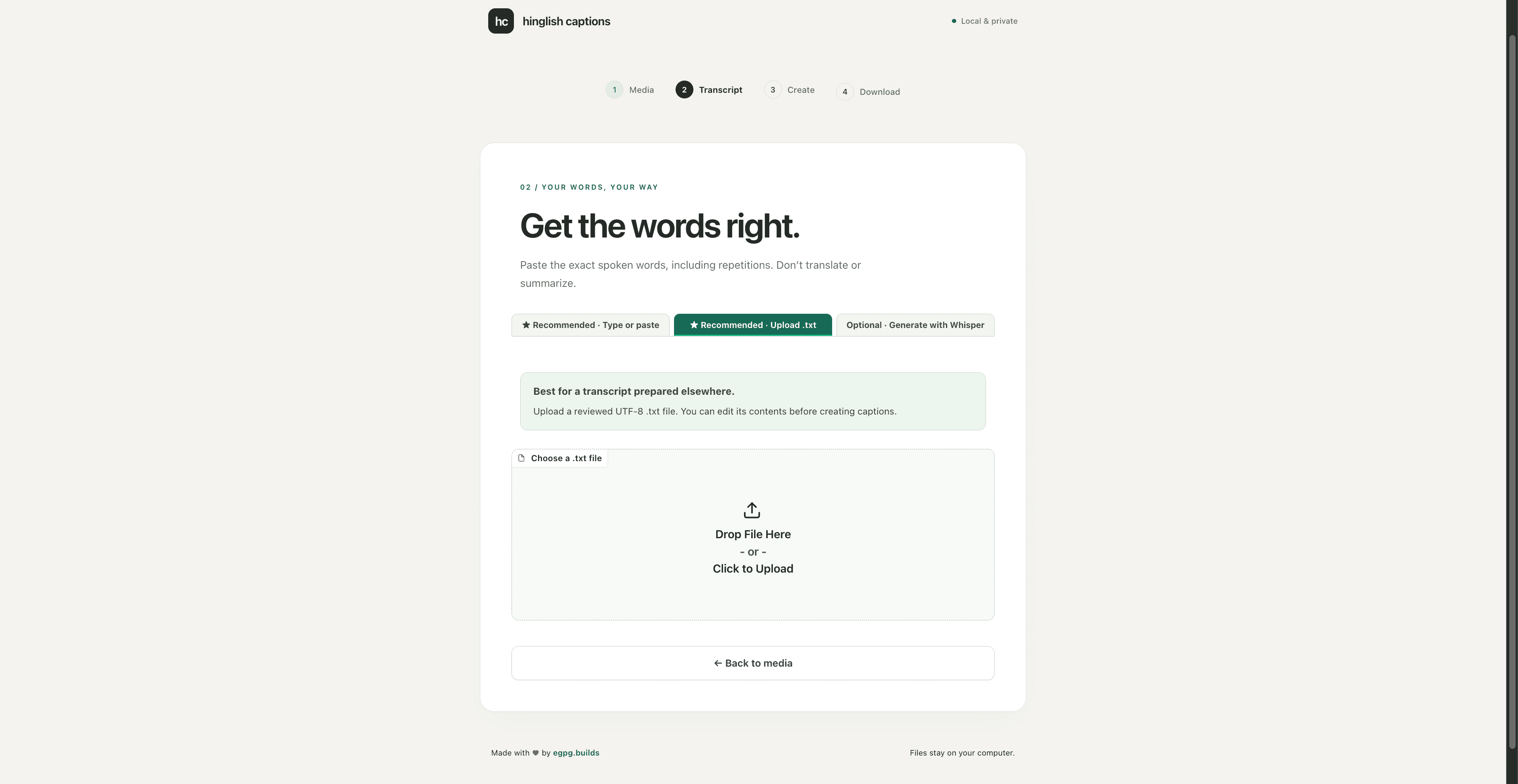
Provide the exact transcript
Paste the words exactly as they were spoken or upload a text file. This is what gives you control over Roman Hinglish spellings, names, slang, and English words instead of leaving every choice to automatic transcription.
- No transcript yet? Generate a rough draft in the app, then correct it.
- Keep repetitions and filler words when they are audible so the words stay aligned.
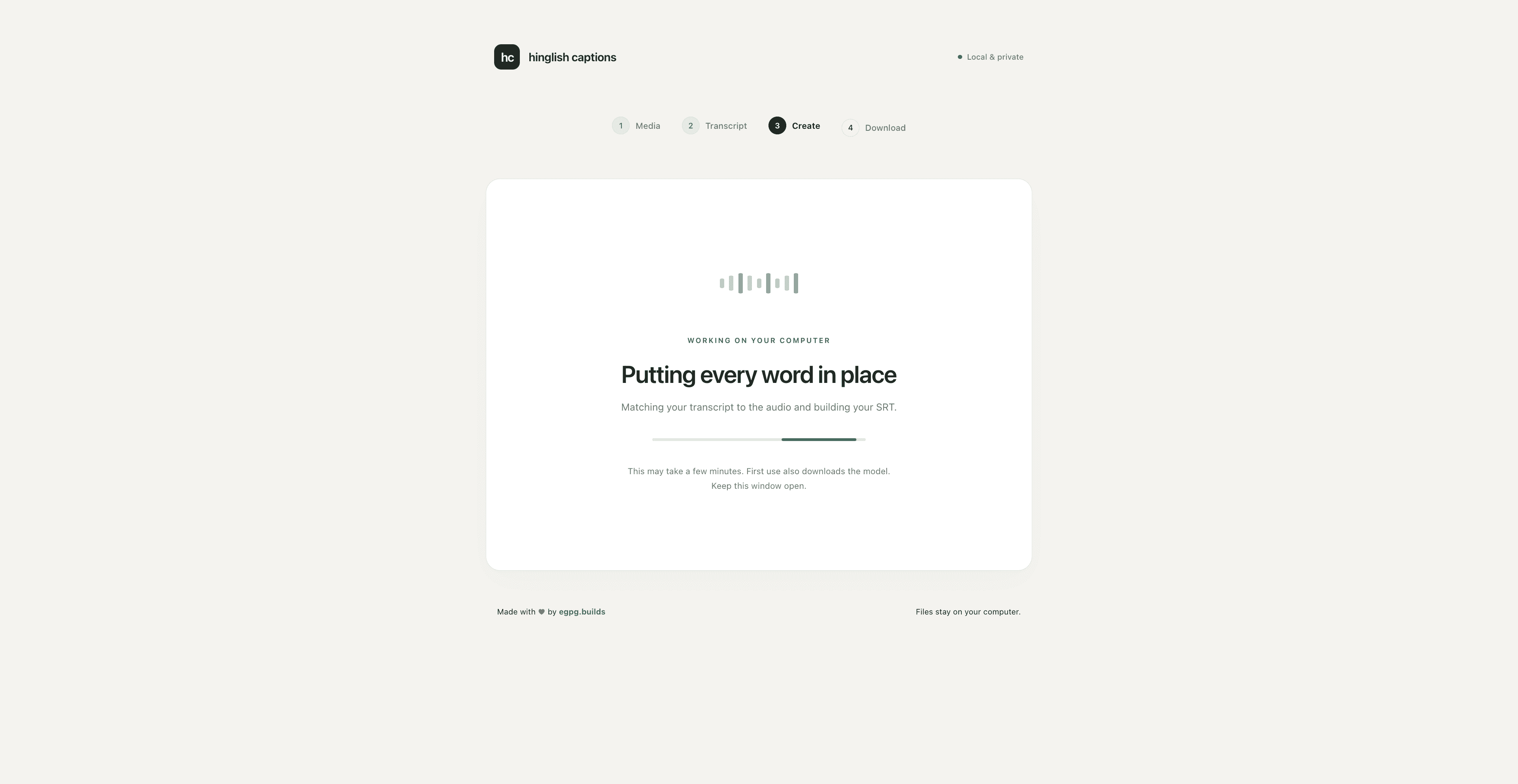
Create the captions
Select “Create my captions.” The tool matches your reviewed words to the speech and shows progress while it creates the timed subtitle file on your computer.
- Short videos and smaller models usually finish sooner.
- Keep the browser and terminal open until the captions are ready.
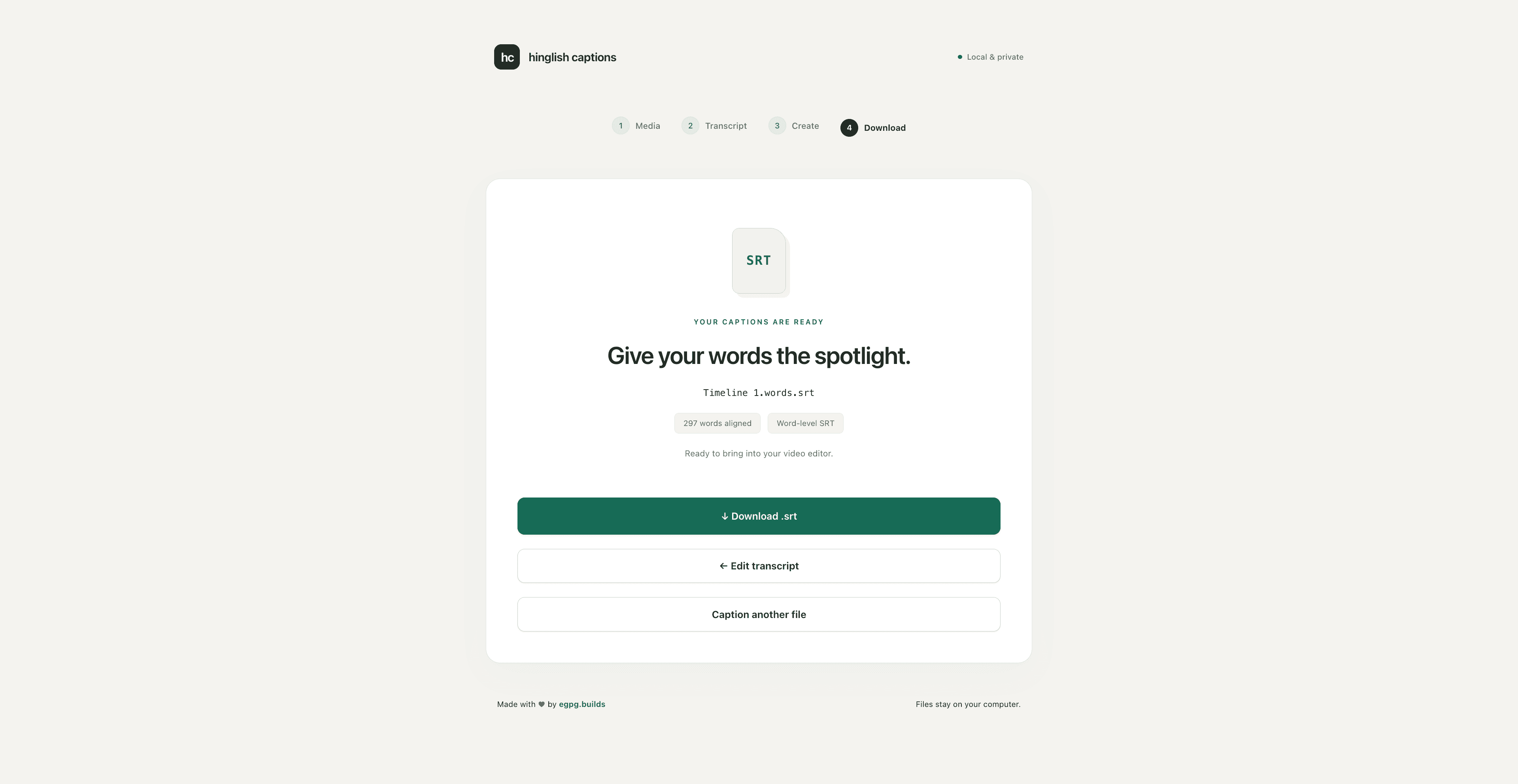
Download and review the SRT
Download the finished .srt and import it into an editor that supports subtitle files. Add your font, colours, animation, and placement there, then check the final video once before publishing.
- The output is designed for one-word-at-a-time caption styles.
- Need to change a spelling? Edit the transcript and create the captions again.
The key to better Hinglish captions
You decide the words. The tool finds the timing.
Roman Hinglish has no single spelling standard, and automatic transcription can easily change names, slang, brand terms, or mixed Hindi–English phrases. A quick transcript review before alignment saves you from correcting dozens of individual caption cues later.
| Option | Best for | Recommendation |
|---|---|---|
| Type or paste | A transcript from a script, notes app, document, or chat | Recommended |
| Upload UTF-8 .txt | A saved transcript you want to review in the editor | Recommended |
| Generate with Whisper | A rough first draft when no transcript exists | Optional |
If you do not already have a transcript, let the app generate a draft and then read it once. Correct names, Hinglish spelling, numbers, and mixed-language words before creating the final captions. That small review is where most of the wording improvement comes from.
One-time setup
Install it once, then launch it when you need captions
The tool runs locally rather than on this website, so the first use requires Python 3.11, FFmpeg, and Git. Follow the commands for your operating system; later sessions start with a single launcher command.
macOS
If you use Homebrew, install the three prerequisites, clone the repository, and run the launcher:
brew install python@3.11 ffmpeg gitgit clone https://github.com/Xorawar/hinglish-captions.git
cd hinglish-captions
./run.shLinux
Install Python, its virtual-environment support, FFmpeg, and Git with your distribution’s package manager. Ubuntu and Debian users can use this example; other distributions do not use apt.
sudo apt update\nsudo apt install python3 python3-venv ffmpeg gitgit clone https://github.com/Xorawar/hinglish-captions.git
cd hinglish-captions
./run.shWindows
Install the prerequisites with winget, then restart PowerShell or Command Prompt if the new commands are not immediately available.
winget install Python.Python.3.11\nwinget install Gyan.FFmpeg\nwinget install Git.Gitgit clone https://github.com/Xorawar/hinglish-captions.git
cd hinglish-captions
.\run.batThe first launch downloads the required packages, and your first chosen speech model can be a large download. Keep the terminal open. Later launches reuse those files and are simpler: run
./run.shon macOS/Linux or.\run.baton Windows.
The app opens at http://127.0.0.1:7860. This is the tool running privately on your computer-not a public website or sharing link.
Know before you start
Private by default, but still worth reviewing
Your video, transcript, and caption processing stay on the computer running the tool. You do not need an account or paid API key, and this website never receives your media.
What stays private
- Your uploaded audio or video
- Your Roman Hinglish transcript
- The transcription and alignment process
- Your generated SRT download
What can affect results
- Loud music, noise, or unclear speech
- Overlapping speakers
- A transcript that skips or reorders words
- Editing or speeding up the video after captioning
A reviewed transcript improves the displayed words, but no speech-alignment tool can promise perfect timing for every recording. Check the imported captions against the final edit before you publish.
If something gets in the way
Quick fixes for common problems
Python is not found
Install Python 3.11, confirm it was added to PATH, restart the terminal, and run the launcher again.
FFmpeg is not found
Install FFmpeg, restart the terminal, and verify the installation with ffmpeg -version.
Git is not found
Install Git, restart the terminal, and verify the installation with git --version.
The first launch is taking a long time
Machine-learning packages may still be downloading and installing. Keep the terminal open and confirm that the computer has a stable connection and sufficient disk space.
The first transcription or alignment is slow
The selected model may be downloading. large-v3 is substantially larger and slower than small or medium, especially on CPU.
The transcript contains incorrect Hinglish words
Type or upload a corrected transcript. This is the intended high-accuracy workflow for controlling Roman Hinglish wording.
The captions are out of sync
Confirm that the uploaded media came from the same timeline, no silence was removed from only one version, playback speed did not change, and the transcript follows the exact spoken order. Review timing around long pauses.
Common questions
Hinglish Captions FAQ
Is Hinglish Captions completely free?
Yes. There is no subscription, minute limit, paid API key, export fee, or watermark from this tool. It is open source under the MIT License. You only need your own computer, storage, and internet for the initial setup.
Is an OpenAI API key required?
No. The speech models run locally and the documented workflow does not require an OpenAI API key or another paid API.
Is my audio or video uploaded anywhere?
No. Hinglish Captions processes the media and transcript on your computer. The browser screen you use is local and is not a public upload page.
Does it automatically transcribe Hinglish?
It can generate an optional Whisper draft locally, but that is a convenience rather than a guarantee of correct Roman Hinglish. Names, slang, numbers, noise, music, code-switching, and overlapping speakers can produce mistakes.
Why is a corrected transcript recommended?
A reviewed transcript gives the aligner the exact words and Roman spellings you want on screen. The tool can then focus on matching those words to the speech instead of deciding how a Hinglish word should be written.
Does it create one word per caption?
Yes, the normal output is one spoken word per SRT cue. This makes it useful for the fast word-by-word caption style commonly used in short-form video.
Which speech model should I choose?
Start with medium for a practical balance. Choose small for lower memory use or a faster draft. Choose large-v3 only when you can accept a larger download, higher memory use, and slower CPU processing.
Will every launch take as long as the first?
No. The first setup installs the required packages, and the first use of a model downloads it. Later launches reuse those files, so you do not repeat the full setup each time.
Can I use the SRT in my video editor?
Yes, if the editor supports SRT import. SRT stores text and timing, not the final font, animation, or visual design, so styling is completed inside the editor.
Can I customize the open-source tool?
Yes. The project uses the MIT License, so developers can inspect and adapt it within the license terms. The GitHub repository contains the source code and issue tracker.
Does it work on Windows, macOS, and Linux?
The repository provides run.bat for Windows and run.sh for macOS and Linux. A supported Python version, FFmpeg, Git, storage, and compatible hardware are still required.
Why can caption timing still be imperfect?
Alignment remains sensitive to unclear speech, noise, music, overlapping voices, and transcript order. Timing will also shift if the final edit trims silence or changes playback speed after the SRT was generated.