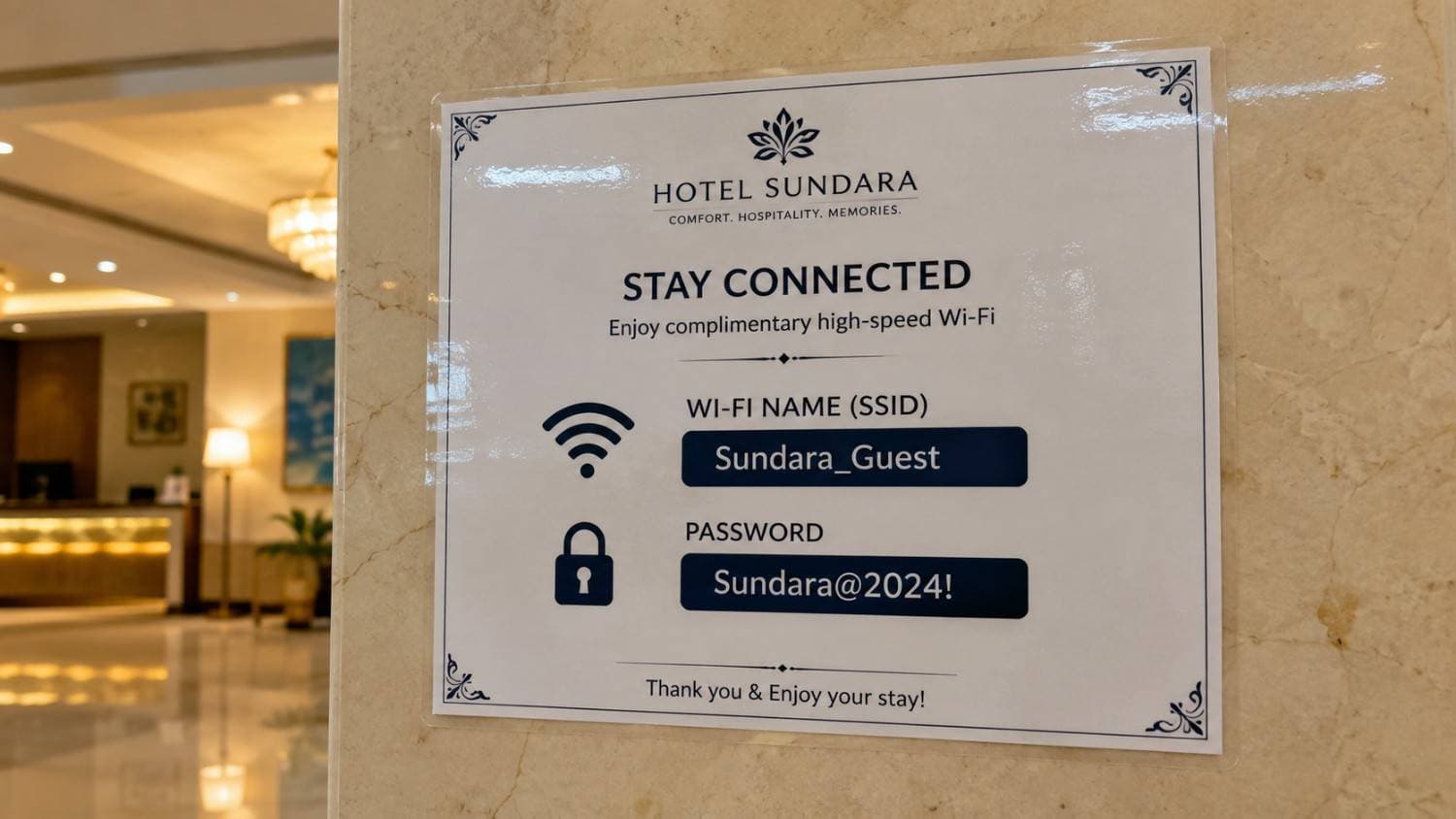
You remember a restaurant name or a price in a screenshot. Start with that detail. You do not need to retype every word in the image.
Start with a word in the image
If your photo app can search text in images, try a restaurant name, street, product model, or another distinctive word. Search one clue at a time. A broad word like “dinner” may bring back too many images.
If your photo app cannot do that, save the image in Offload. It reads the text in the image automatically, and you can add a note with details the image does not show. Later, search using the words in the image, your note, or both.
- Try part of a name if you are unsure of the spelling.
- Use the date or album to narrow the list if your app offers those filters.
- Open the image and check the original text.
If the text is missed, use a clearer image
Use the original screenshot rather than a compressed copy. Tiny letters, blur, and busy backgrounds are harder to read. Cropping around the text can help, but it cannot restore missing detail.
To copy the words, choose your image in the free screenshot text extractor. It reads printed English text in your browser, then lets you correct, copy, or download the result. Your image is not uploaded.
Add the clue the image cannot show
A menu image may show the restaurant but not the friend who sent it. Save it in Offload with the note “Riya recommended this for Jaipur.” Later, ask “What was that Jaipur place Riya recommended?” Offload can use the restaurant name in the image and Riya’s name in your note to find it.
Common questions
Searching screenshot text FAQ
Why does image search miss a word I can see?
Small letters, blur, decorative fonts, and low contrast can make text hard to read. Try the original image or search for another word in it.
Do I need to type out the screenshot?
No. Offload reads the text in the image automatically. Your note can simply explain why you saved it.
What if I only remember who sent it?
Include that person’s name in your note when saving the image. Offload can then use it to find the screenshot.
Does the free tool save images to Offload?
No. It only reads printed English text locally in your browser. Saving an image to the Offload app is a separate action.