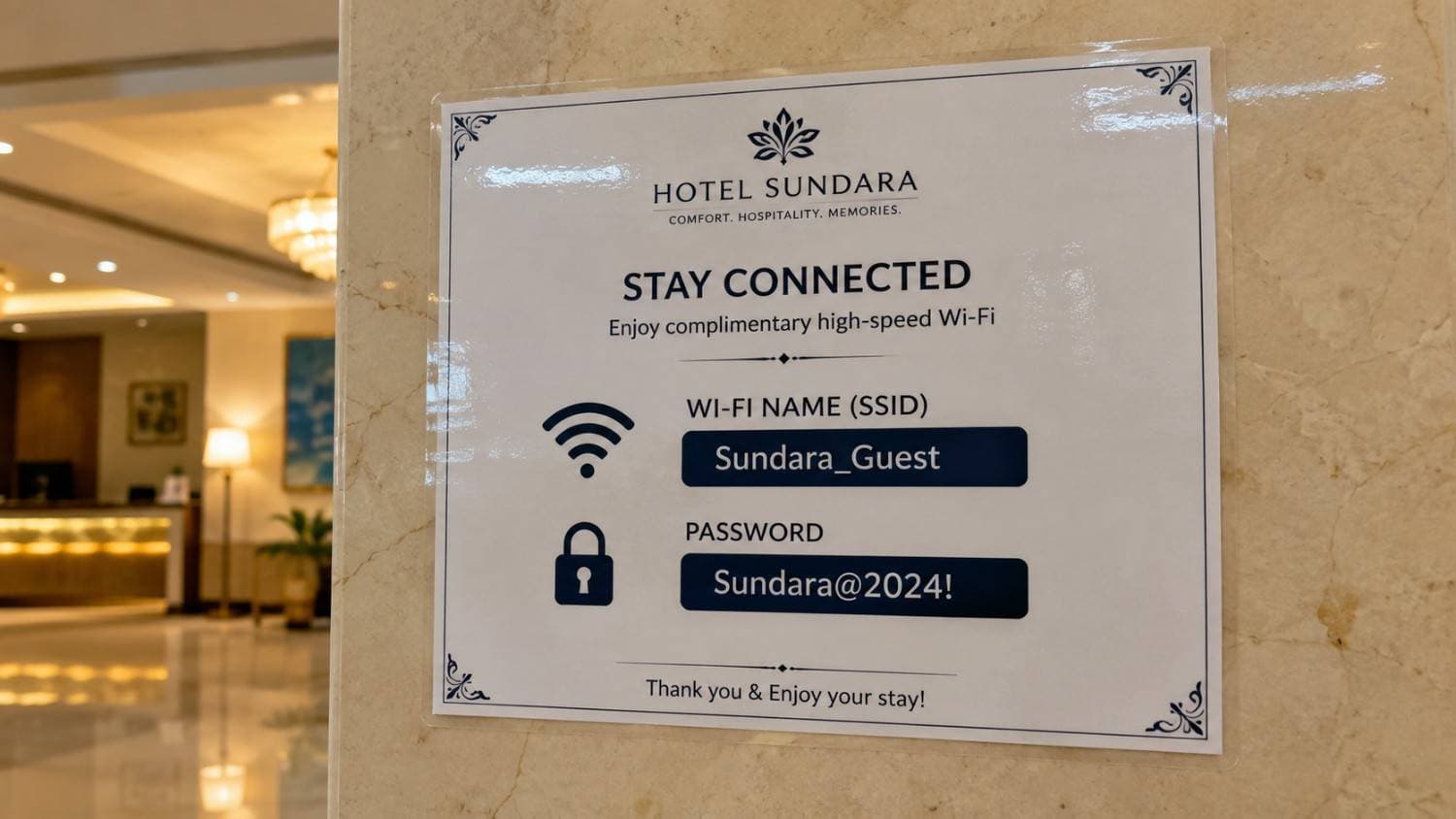
Open your screenshots and you may find an expired ticket beside a recipe you still want to try. Start by separating what you need from what you can delete.
Start with your recent screenshots
Work through a small batch, such as the last month. Ask whether each image is still useful. A booking confirmation may matter until the trip ends; a recipe may be worth keeping for years.
- Keep receipts, bookings, and instructions you still need.
- Delete accidental captures, duplicates, and expired offers after checking them.
- Keep a separate copy of anything important before deleting it.
Make the keepers easy to find
Create a few albums you will actually use, such as Travel, Recipes, and Work. For a screenshot you may need months later, save it in Offload with the detail the image cannot explain: “Shoes Neha recommended for the trek” or “Try this recipe on Friday.”
That short note keeps the reason beside the image. You do not need to copy the words already visible in the screenshot because Offload reads them automatically.
- Choose broad album names you can remember.
- Use Offload for images you will want to find by who sent them, why you saved them, or what you planned to do.
- Review temporary images after the event or trip, rather than sorting your whole gallery every week.
Find a screenshot by asking about it
When you need the screenshot again, ask Offload what you remember: “Which shoes did Neha recommend?” It can search the words in the image together with the note you added.
You choose what to add. Offload does not scan or tidy your whole gallery.
- Search for details in the image or words from your note.
- Keep personal clues such as a friend’s name with the image.
- Check important names, prices, and dates against the original.
Common questions
Organizing phone screenshots FAQ
Do I need a folder for every type of screenshot?
No. Start with a few broad albums. If you save images in Offload, you can ask about their contents and your notes without choosing a folder.
What should I write in a note?
Write the detail you might remember later: “Neha sent this for our trek” or “Try this recipe on Friday.” You do not need to type out the text already in the image.
Can I search the text inside the screenshot?
Yes. Offload reads text in the image automatically, so you can search for details shown there as well as your own note.
Can it read an image incorrectly?
Yes. Small or blurry text can be missed. Double-check important details in the original image.